Web application · Windows

CloudTransfer
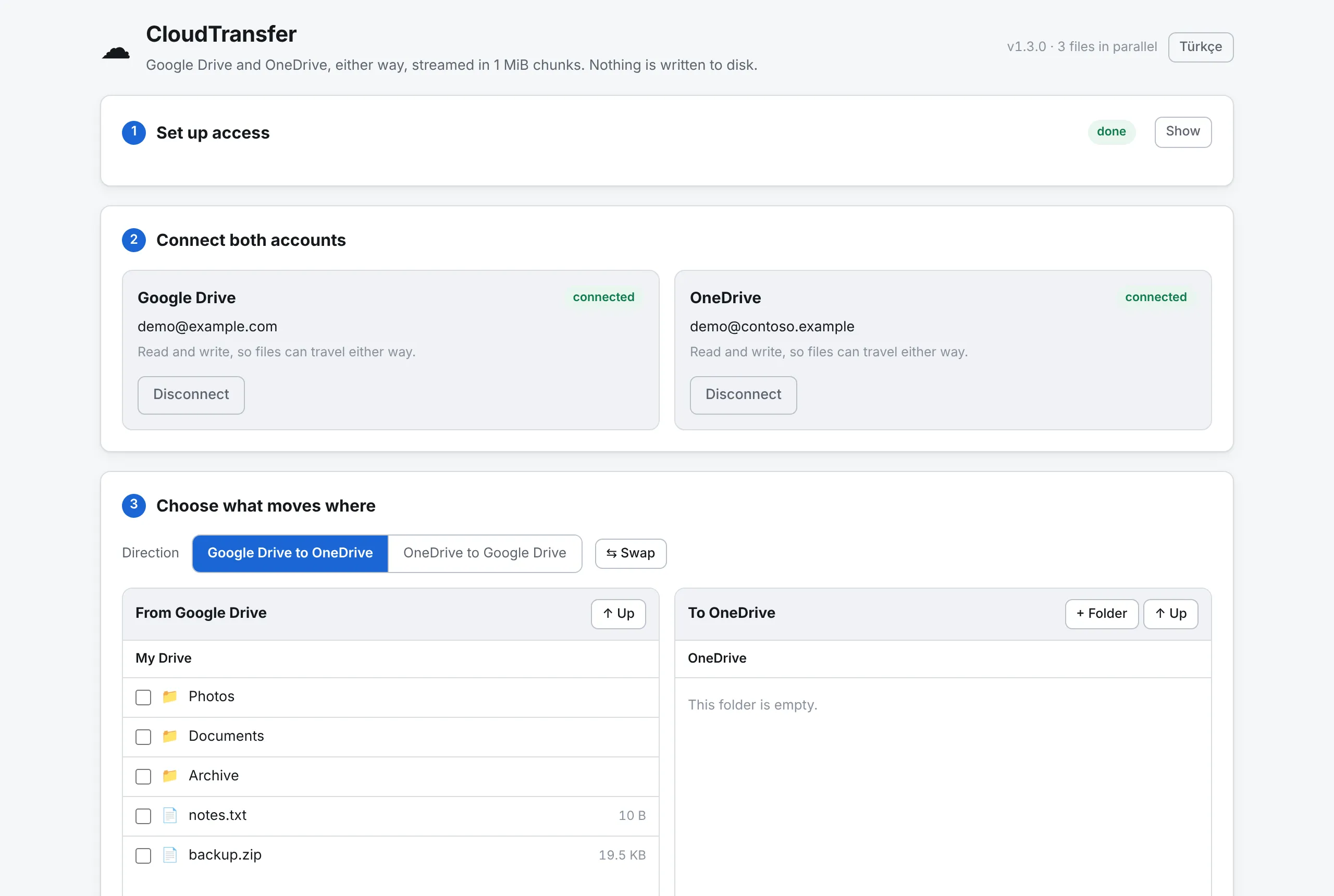
Move files between Google Drive and OneDrive, in either direction, without ever downloading them to your computer.
Each file is read from the source in byte ranges, held one chunk at a time in memory, and pushed straight to the destination. Nothing reaches your disk: no temporary folder, no half-written file. An interrupted transfer resumes from the exact byte it reached, and every file is verified by hash on both sides.
Free · Open source · No ads · Installs without administrator rights · Version 1.3.1 · Windows 10 or later (64-bit)
- 2
- clouds, either way
- 0
- bytes written to disk
- 10 MiB
- held in memory at a time
- 2
- interface languages
What it does
It takes on the tedious part of moving files between two clouds: downloading and re-uploading, keeping track of what was interrupted, and resolving name clashes.
Nothing touches the disk
A file is read in byte ranges and only one chunk is held in memory at a time, so a 200 GB file costs the same memory as a 200 MB one. There is no temporary folder, and an interrupted transfer leaves no half-written file behind.
Works in both directions
Google Drive to OneDrive, or OneDrive to Google Drive. The direction is one button in the interface, and the rules adapt to whichever side is receiving.
Choose what moves
Transfer a whole folder, or tick individual files and folders in the list. A ticked folder is taken whole.
Interrupted transfers resume
The destination remembers how much of each upload it holds. After a pause, a crash or a dropped connection, each file continues from that exact byte rather than starting over.
Every file is verified
Hashes are computed as the bytes stream past and compared on both sides: that the source was read correctly, and that the destination stored the same bytes. The outcome appears file by file in a downloadable report.
Names are never silently mangled
Characters OneDrive rejects are replaced and duplicate names in one folder are numbered, with every rename and its reason recorded in the report. Going the other way no such limits apply, so names pass through untouched.
How it works
After installing there are four steps, and the first is done only once.
- Step 1
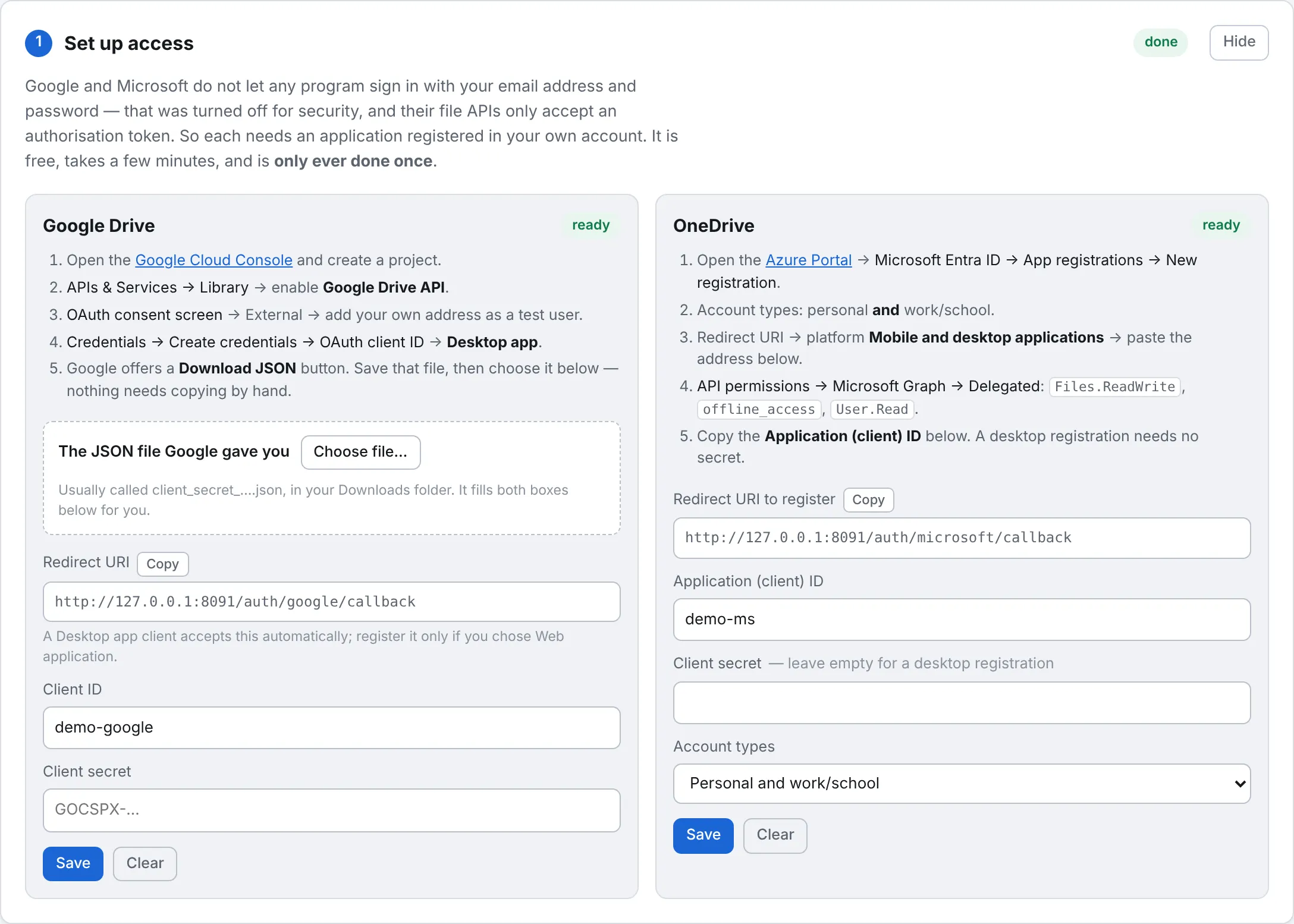
Set up access (once)
Google and Microsoft no longer let any program sign in with your email address and password; that was withdrawn for security. So you register an application of your own in each service. The program lists the steps, gives you the address to register with a copy button, and lets you simply select the JSON file Google hands out — nothing has to be typed by hand. It is done only once.
- Step 2
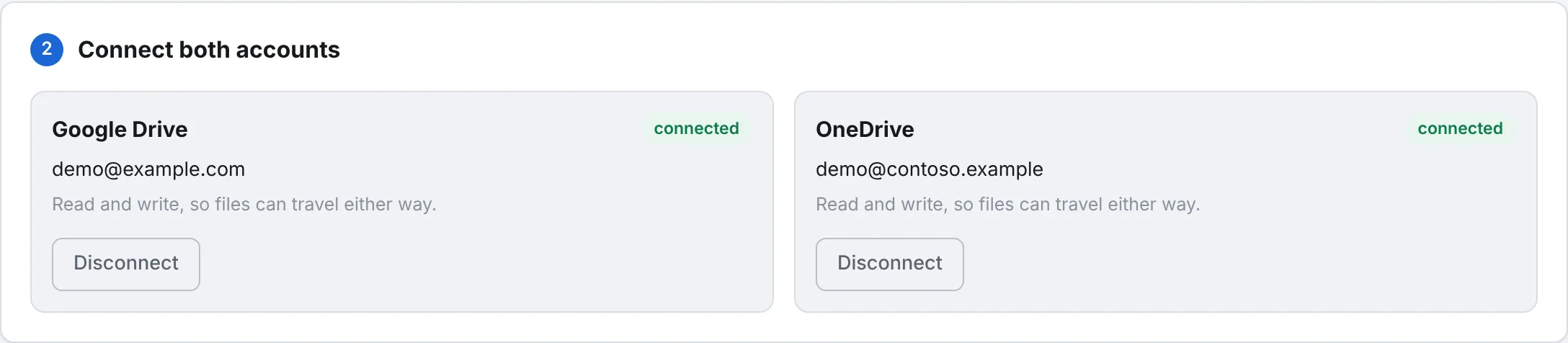
Connect both accounts
The connect button takes you to Google's and Microsoft's own consent pages. Your password never reaches the program, and you can withdraw the access you granted at any time from your account settings.
- Step 3
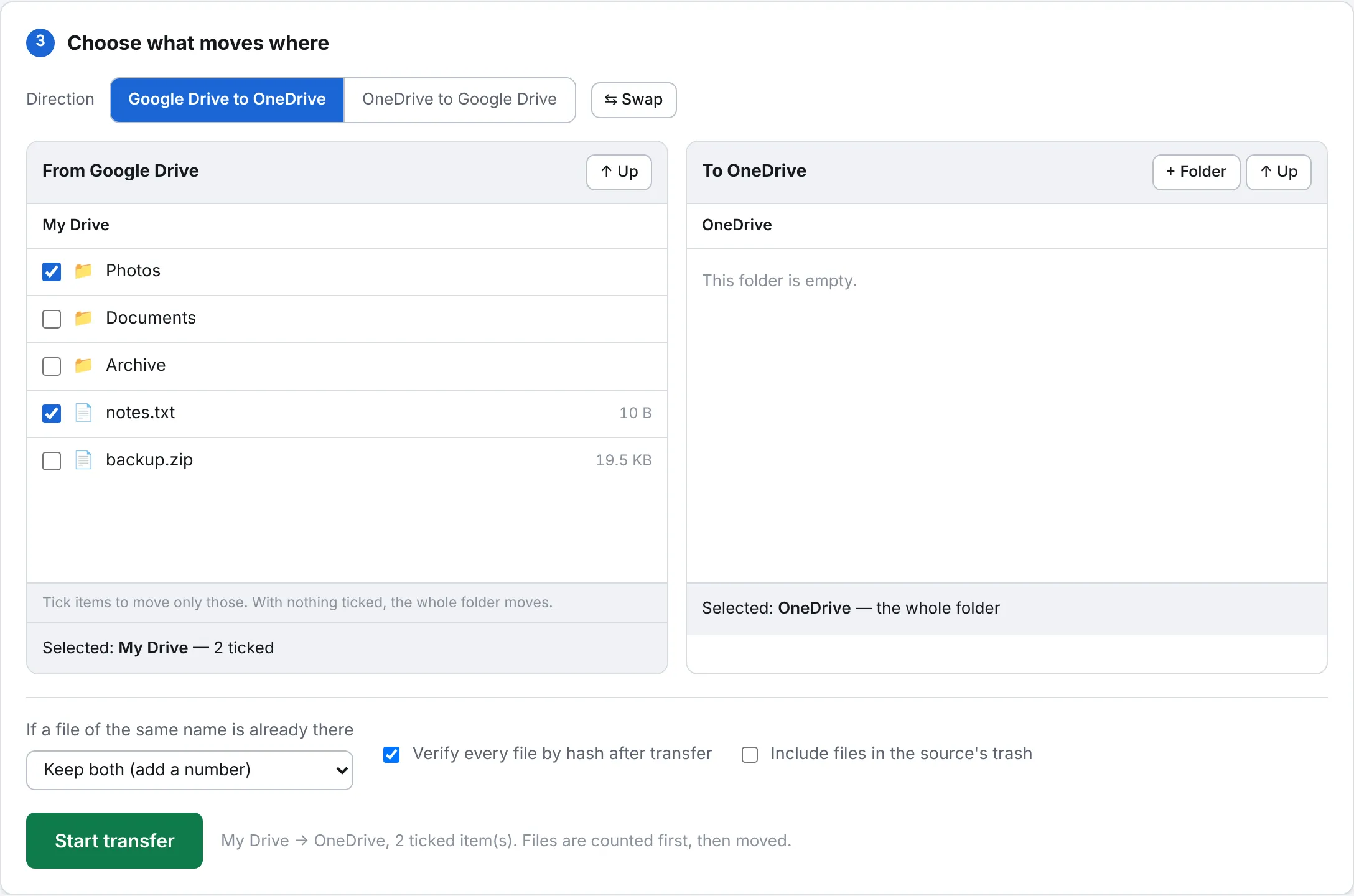
Choose what goes where
Pick the direction, then the source folder on the left and the destination folder on the right. To move only certain items, tick them in the list; with nothing ticked the whole folder moves. What happens to files that already exist by the same name is chosen here too.
- Step 4
Start it and watch
The files are counted first, then moved. Progress, speed and the time remaining are shown, and you can pause, resume, cancel or delete at any point. When it finishes you can download a CSV listing every file's outcome, every rename and the reason for anything skipped.
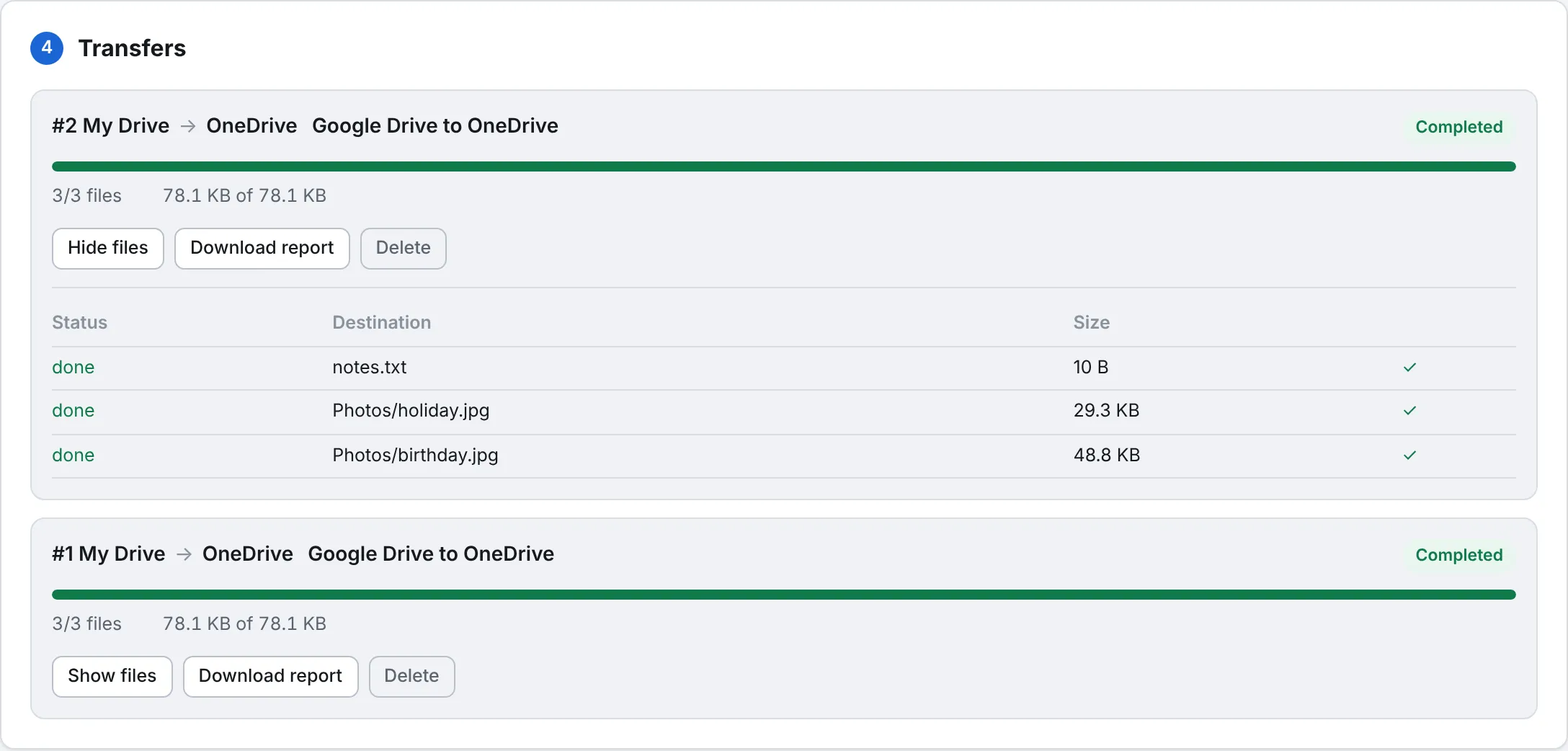
More screens
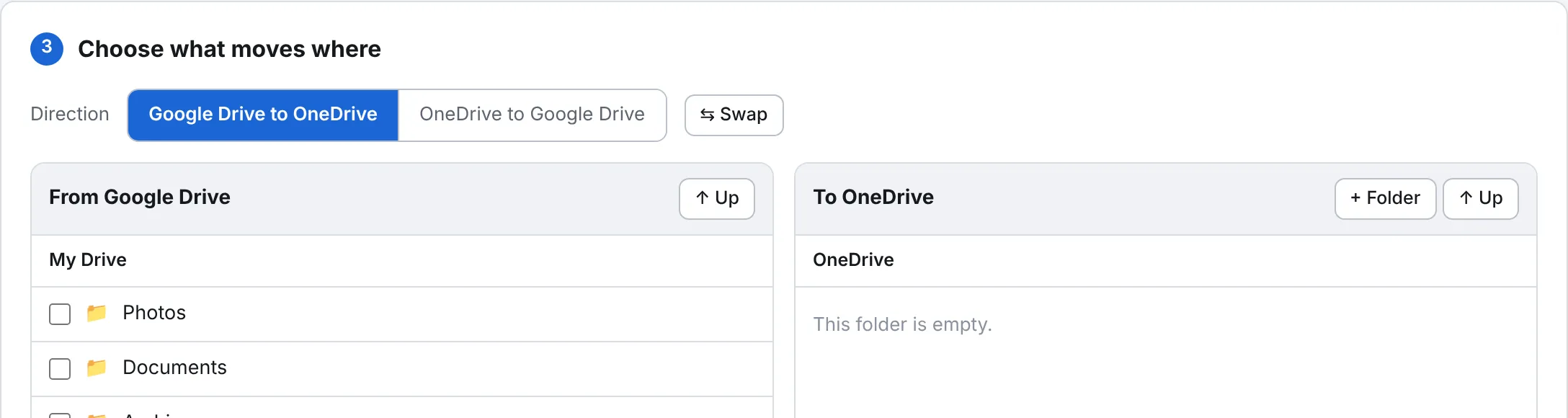
One button changes the direction; Swap exchanges the two sides. 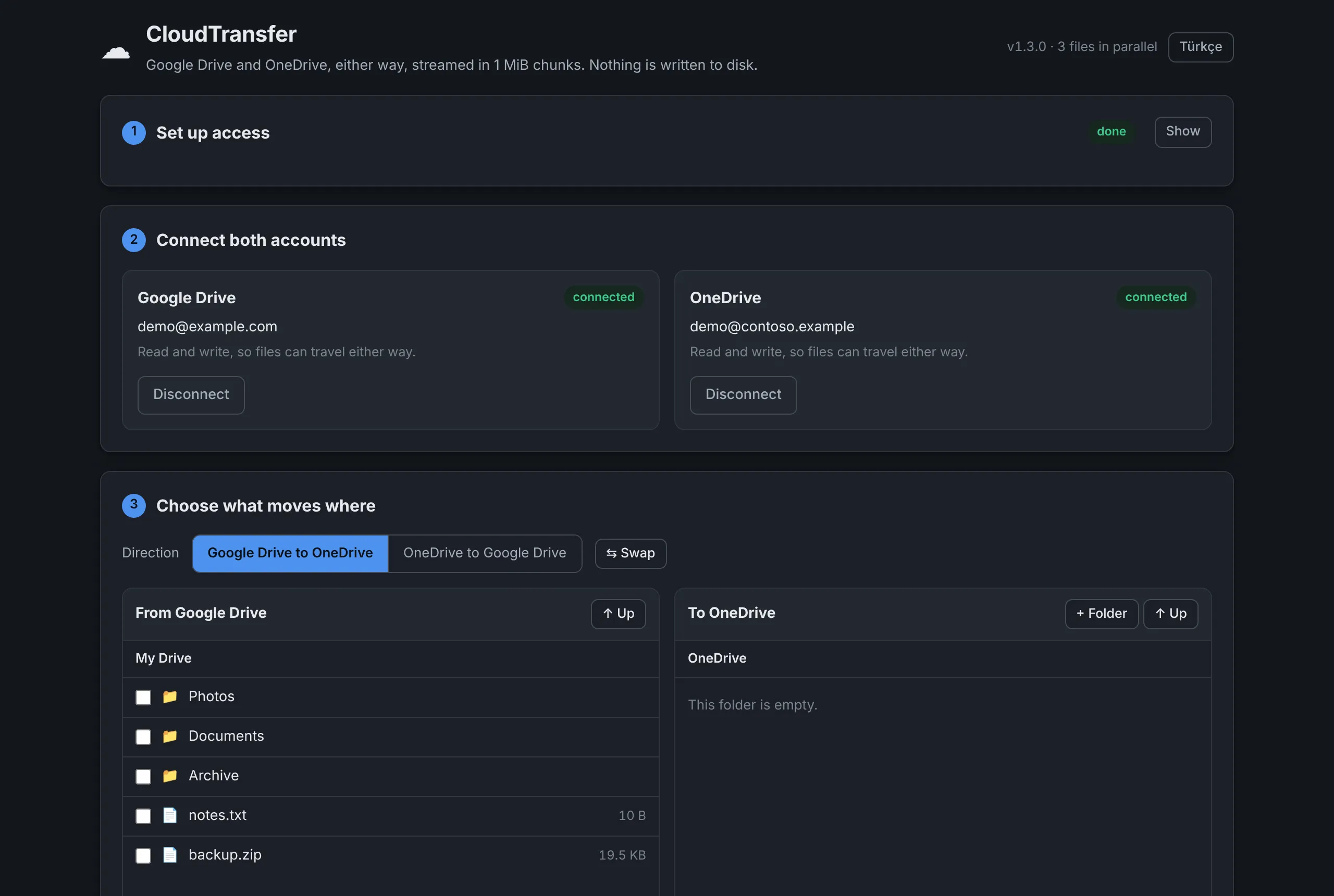
The interface is in Turkish and English, and follows your system's dark theme.
Where do the data come from?
Trustworthy, open and private
Your password is never asked for
Authorisation happens on Google's and Microsoft's own pages; the program only ever receives a time-limited access token. The token is stored encrypted on your computer, and you can cut off the access at any time from your account settings.
Nothing is deleted from the source
Whichever way it runs, this copies; the files on the source side stay where they are. What happens to a file that already exists at the destination is your choice.
Open source
The whole program is published on GitHub under the GNU GPL-3.0: you can read it, change it and share it. The installer is built automatically for each release and checked to start correctly before it is attached, and its checksum is published alongside it.
Frequently asked questions
Do the files really not come down to my computer?
They are never written to disk: the bytes pass through memory one chunk at a time and go straight to the destination. But the program runs on your computer, so the bytes do travel over your own connection. A true cloud-to-cloud copy is not possible: Google Drive has no "send to this URL" operation, and Microsoft withdrew its "upload from URL" feature.
Why can I not just sign in with my email and password?
Google and Microsoft withdrew it deliberately, and their file services only accept an authorisation token. Giving a program your password means giving it unlimited, open-ended power over your account. That is why the registration in the first step is unavoidable — but it is done once, and the program does not make you transcribe anything.
What happens to Google Docs, Sheets and Slides files?
Google's own formats have no bytes to copy, so on the way out of Drive they are exported to .docx, .xlsx and .pptx and stay editable in Office. Google caps that export at 10 MB; files above it are not dropped silently but listed in the report with the reason. Coming the other way nothing needs converting — the one exception is a OneNote notebook, which is a package with no single stream to copy.
If a transfer is interrupted, does it start over?
No. The destination remembers how many bytes of each file it holds; on resuming, the program asks it and continues from exactly there. The same applies after a pause, a shutdown or a dropped connection.
Windows warns that the publisher is unknown.
The installer is not code-signed, which needs a paid certificate. On the SmartScreen warning choose "More info" and then "Run anyway", or build it yourself from source. The SHA-256 value published with the release lets you check the file you downloaded.
Is there a macOS or Linux version?
A ready-made installer is produced for Windows only. The program is written in Python, so it also runs from source on macOS and Linux; the instructions on the GitHub page cover that.
Support
For questions, suggestions and bug reports, send an email or open an issue on GitHub.